
If I want more streams and pre-saves from one link, I need to build the page early, keep it simple, test every button, and switch pre-save links to live links on release day.
Here’s the short version:
- I use one smartlink instead of posting a pile of Spotify, Apple Music, and other URLs
- I set up the page 2 to 3 weeks before release to give fans time to pre-save
- I gather the basics first: artist name, release title, cover art, release date, UPC/ISRC, and store or pre-save links
- I keep the page focused by showing only the platforms fans are most likely to use
- I add tracking like UTM tags and a Meta Pixel before launch
- I test the link on mobile and desktop
- I check key numbers after launch: clicks, conversion rate, top platforms, traffic sources, and device split
A smartlink does two jobs at once: it sends fans to the right music service, and it shows me what happens after they click. That matters because if traffic is high but action is low, I know the page needs fewer choices, a clearer main button, or faster mobile load time.
I also need to watch the most common setup issues:
- Missing store links
- Wrong metadata
- Pre-save ID or date errors
- Too many buttons on the page
One simple rule runs through the whole process: the less friction I add, the more people click. In many cases, trimming platform choices in the final 48 hours before release can help more people finish the action I want.
So when I set up a smartlink, I’m not just making a landing page. I’m building one clean path from promo to pre-save to stream, then using the data to improve the campaign after it goes live.
How to Setup Presave Links – Tutorial
sbb-itb-888513b
What You Need Before Building a Smartlink
Get your files and links lined up before you open the builder. It makes the setup smoother, and you can move straight into building instead of hunting for missing pieces.
Release assets and metadata
You’ll need the final artist name, release title, cover artwork, and official release date. Keep your UPC or ISRC on hand too. This release info helps pull in artwork and store links, and it’s smart to have the cover file ready in case you need to upload it by hand.
If the release is already live, paste in one live Spotify or Apple Music URL. The tool can use that to pull the other store links. If the music isn’t out yet, you’ll need the Spotify pre-save URI or link. You can find it in Spotify for Artists after your distributor has delivered the release.
Destination links and campaign extras
Pick the streaming and sales links that fit the campaign. You can add Bandcamp, merch, ticket, and social links, but only include them when they help the page do its job. Too many links can make the page feel cluttered.
Before you publish, add your Meta Pixel ID and tag your destination links with UTM parameters.
Timing and launch planning
Build the smartlink as soon as your distributor gives you the pre-save identifier. On release day, switch the page from pre-save mode to live streaming links. After that, you’re ready to build and publish.
Step-by-Step: How to Create and Configure a Smartlink
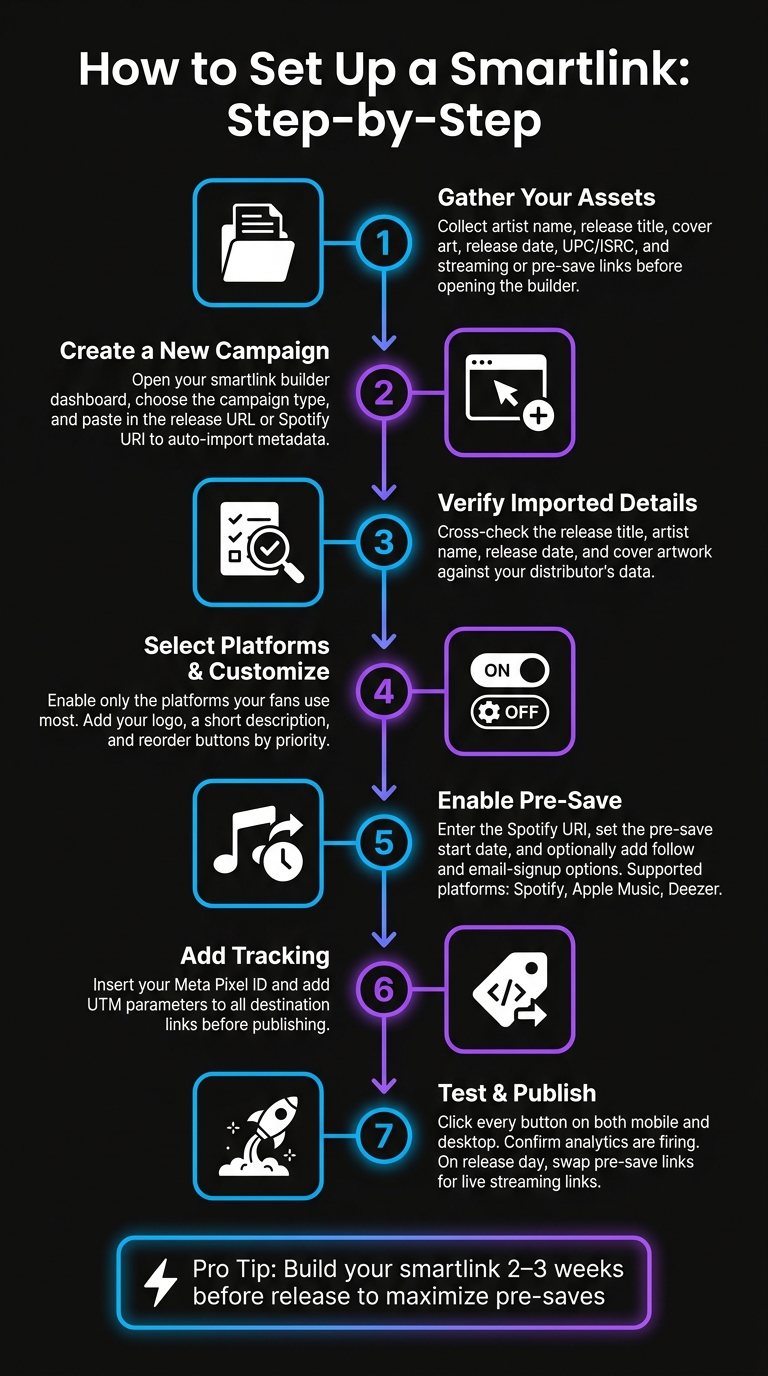
Smartlink Setup Process: From Pre-Save to Release Day
Add the release and check imported details
Once your assets are ready, head to the dashboard and build the campaign in your smartlink builder. Create a new smartlink campaign, choose the campaign type, and paste in the release URL or identifier. The builder will import metadata and store links automatically.
When the import is done, take a minute to check the details. Match the release title, artist name, release date, and cover artwork against your distributor’s data before you save.
Select platforms and customize the landing page
Next, look through the platforms the builder found. Turn off any that don’t fit, then move the rest into the order that makes the most sense for your audience.
After that, add your logo and a short description. If the music hasn’t come out yet, turn on pre-save here too.
Set up the pre-save option
For unreleased music, enable pre-save and enter the Spotify URI to connect the release. Set the pre-save start date so it matches your release date. Supported pre-save platforms are Spotify, Apple Music, and Deezer.
You can also add follow and email-signup options. Those run alongside the pre-save flow.
Publish and test every destination
Before you launch, test the page on desktop and mobile. Click every button yourself and make sure each one opens the right destination for that platform.
After publishing, open the link yourself one more time to confirm analytics are tracking. If you spot broken or duplicate destinations, remove them right away.
How to Optimize the Page and Track Performance
After publishing and testing, use the live page to improve conversion.
Set up the page to get more clicks and pre-saves
Once the page is live, use the layout to drive more clicks. Keep only the services your fans use most, and place the pre-save option or main streaming link at the top. Clear button text like "Pre-save on Spotify" or "Listen on Apple Music" tends to beat vague labels. Keep the description short, and make sure the page loads fast on mobile, since most traffic comes from social media apps.
You can also add a 15–30 second teaser, but only if it helps push people toward the main call to action.
Use tracking to measure traffic and conversion
These metrics help you figure out what to fix first.
| Metric | What It Shows | How To Use It |
|---|---|---|
| Clicks | Total traffic | If clicks are low, promote the page more or rewrite the hook copy |
| Conversion Rate | Share of visitors who take action | If conversion is low, simplify the layout or add a stronger incentive |
| Top Platforms | Which services fans use | Put the most-used services first |
| Traffic Sources | Where visitors come from | Move budget to the channels that perform best |
| Device Behavior | Mobile vs. desktop split | Adjust visual assets for the devices people use most |
If most pre-saves come from Spotify, make that platform the main focus in future campaigns.
Compare setup options based on campaign goals
A release-week push needs a different setup than a long-term growth play. Use the table below as a post-launch checklist when making changes.
| Setting | Effect on Pre-Save Conversion | When To Use |
|---|---|---|
| Fewer Platform Buttons | Increases conversion by reducing choice paralysis | Use during the final 48 hours before release |
| Embedded Audio Player | Increases engagement; fans are more likely to save after hearing a preview | Use when you have a strong teaser clip |
| Social Media Links | Can distract from the main CTA | Use when long-term growth is the secondary goal |
| Tracking Pixels (e.g., Facebook) | Supports retargeting | Essential when running paid social campaigns |
| Email Capture | Adds a step but builds a direct marketing list | Use when long-term fan retention matters more than a single pre-save |
Common Setup Problems and How to Fix Them
When a smartlink isn’t doing its job, there are usually three places to look: delivery, pre-save setup, and page friction.
Missing store links or wrong metadata
If a platform button is missing, first check whether the release has actually reached that store. Then look at the distributor dashboard and confirm the title, artist name, artwork, and barcode are all correct. A bad barcode can pull in the wrong release details.
If everything looks right in the distributor but the smartlink still shows old or incorrect info, refresh the metadata manually or upload the right artwork in the smartlink editor. Most smartlink tools also let you turn platform buttons on or off and paste in a direct streaming URL if auto-population doesn’t work.
If the store info checks out, the next place to look is the pre-save setup.
Pre-save errors and access issues
Pre-save problems usually come down to one of three things: the wrong identifier, the wrong date, or a platform that isn’t connected.
Use the release UPC, EAN, or Spotify URI. If a Spotify URL doesn’t work, convert it to a URI and try again.
You should also match the pre-save start date to the distributor’s delivery timeline. If the page goes live too early or too late, things can break. Once release day arrives, swap the pre-save link out and send people to live streaming links instead.
If the pre-save is working but people still aren’t clicking, the issue is often the page itself.
Low conversion after launch
High traffic with low clicks usually points to friction. In plain English: people land on the page, but something slows them down or makes the next step feel like work.
A few fixes can help:
- Cut down the number of platform choices
- Move the main CTA higher on the page
- Improve mobile load speed
You can also give people a better reason to act. A short personal note can help, and so can a simple incentive like exclusive content or a prize draw.
Conclusion: Publish, Test, and Refine
A smartlink only works if the setup is right. That means accurate release data, confirmed platform destinations, a working pre-save flow, and a page that loads fast on mobile. That’s the baseline.
Once the page is built, do your final checks before you publish. Click every button. Make sure each DSP opens the right destination. Check that analytics are firing as expected. Then set a release-day reminder to replace pre-save links with live stream links, so fans land on the live release.
After launch, let performance data shape your promo work. Use live data to adjust where you put your effort. Double down on the platforms your audience clicks most and the channels that drive pre-saves.
Keep it simple for fans and useful for your team: build it clean, test it well, and refine it as the campaign moves forward.
FAQs
When should I create a smartlink?
Set up your smartlink as soon as your release date is locked in and your music is scheduled with your distributor.
For pre-save campaigns, try to get it live 2–3 weeks before release. That gives you time to build momentum and collect saves before launch day. In Promoly, you can create one with a UPC, ISRC, or a direct URL from a supported platform.
What should I do on release day?
On release day, update your smartlink. After your music goes live, pre-save links stop working, so swap them out for direct streaming links. That way, new visitors can find your release fast and hit play without any friction.
Check the updated link on both mobile and desktop before you send traffic to it. Then use it in your release-day social posts and email campaigns.
If you’re using Promoly, you can track clicks, plays, and platform preferences in real time from the dashboard.
Why is my smartlink getting clicks but not conversions?
If your smartlink gets clicks but not conversions, there’s probably a gap between your call to action and what listeners see next.
Start with your analytics. Look for drop-off points so you can see where people lose interest or leave the page.
Then check the basics:
- Make sure your landing page is mobile-optimized and loads fast
- Confirm your pre-save links are set up correctly
- Give fans a clear reason to act before release day
You can also use Promoly’s tracking to find platforms that aren’t pulling their weight.