Two Outlook bugs our browser checks missed, and how real inbox tests caught them
Before and after the new promo email shipped, we rendered it in 26 real mail client setups. Classic Outlook showed two bugs no browser check had found. Here's how we tested, what we fixed, and what screenshots still can't tell you.
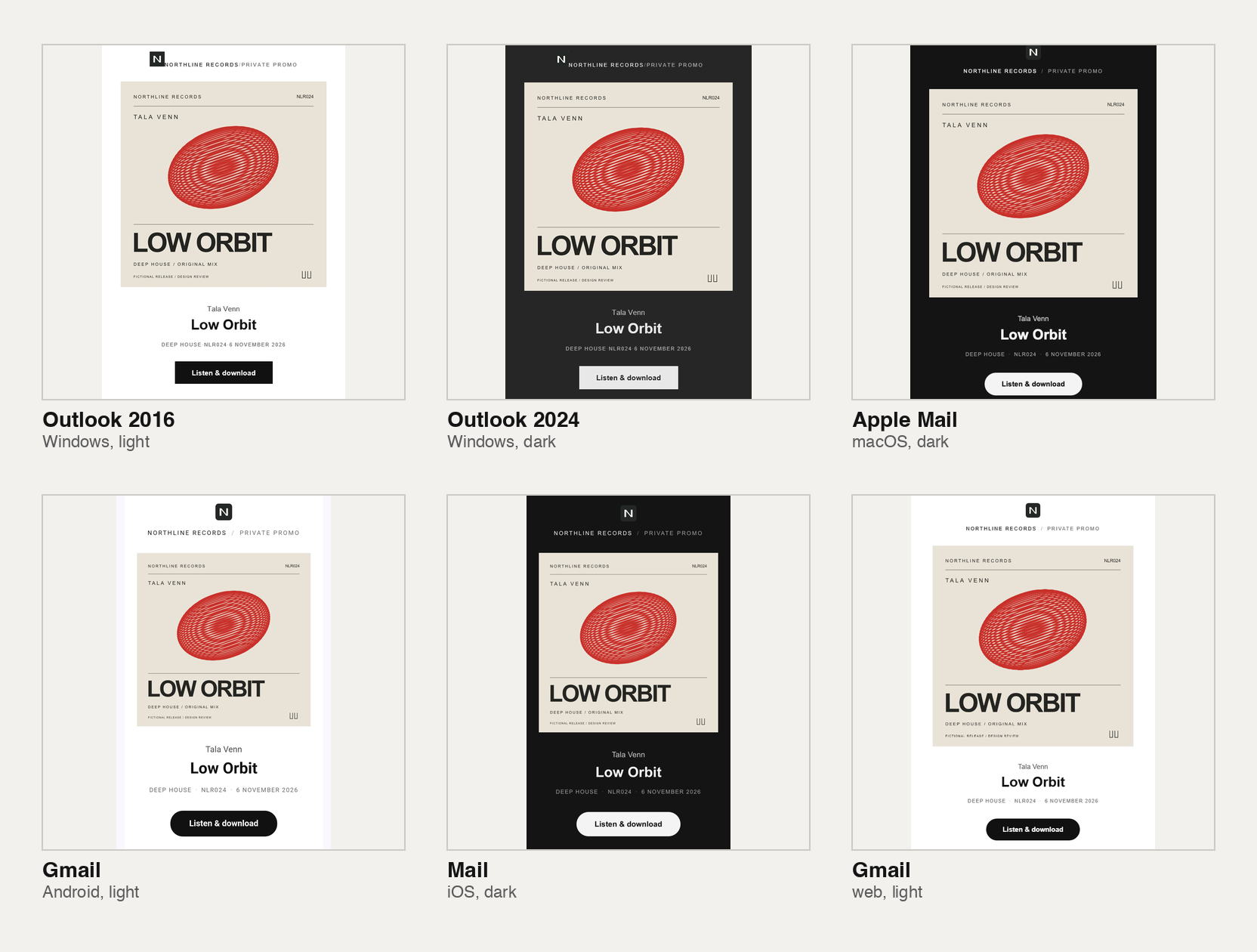
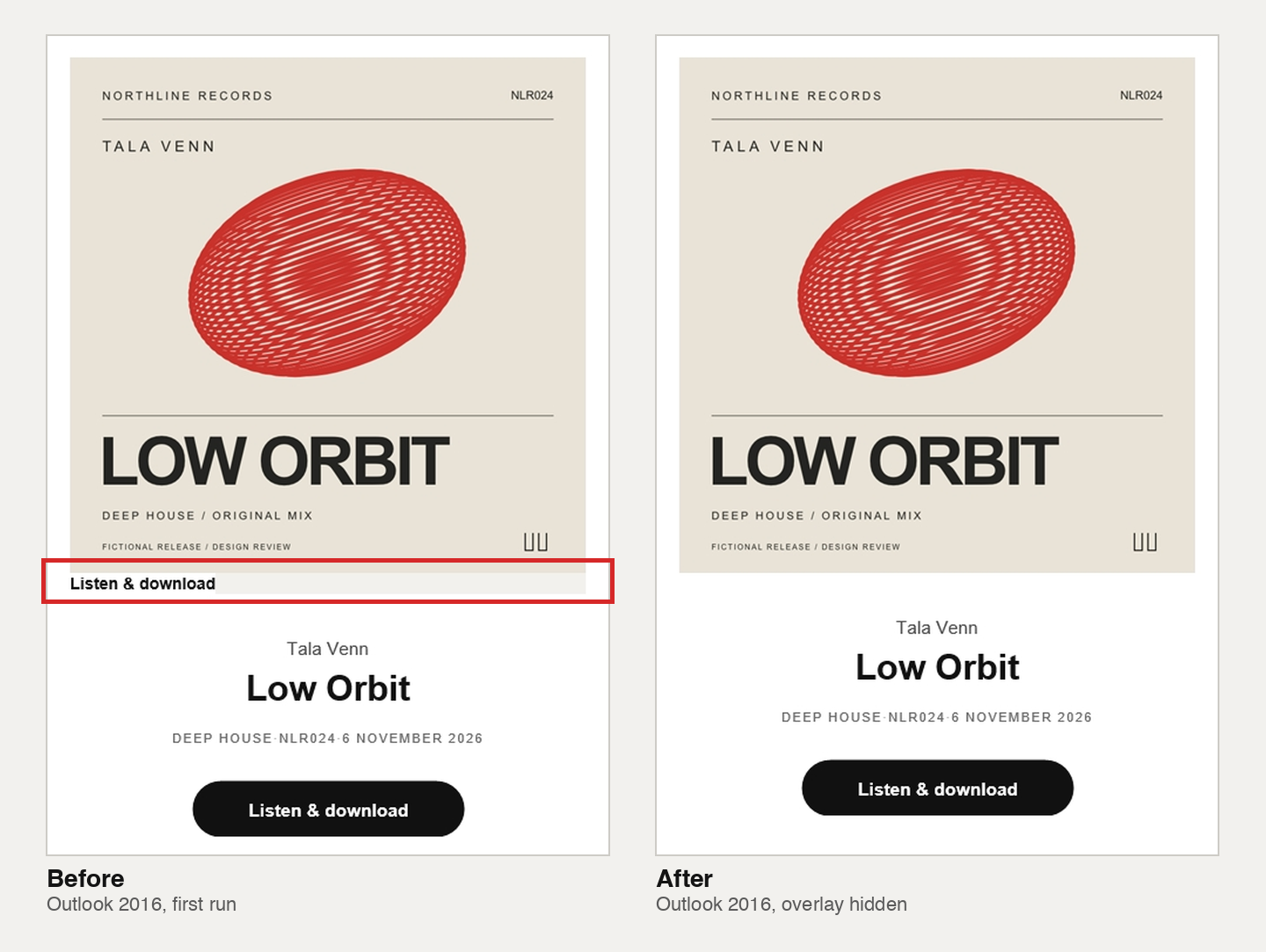
Every round of our promo email redesign passed its browser checks. Then we opened the email in classic Outlook for Windows, and a grey strip with the words "Listen & download" sat under the cover art.
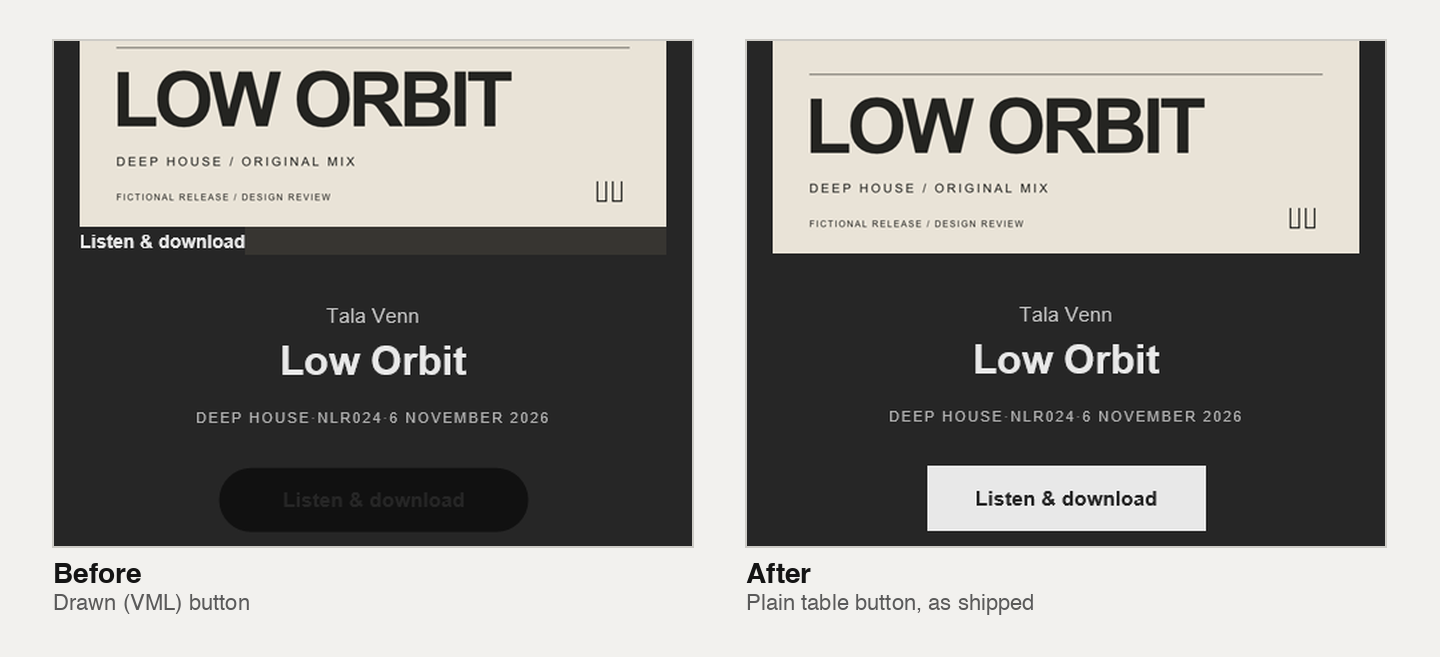
Nothing in the design asked for that strip. It was a label meant only for desktop hover, written so Outlook would never draw it. Outlook drew it anyway. In Outlook's dark mode, a second bug turned the main button into a black shape with dark text on it, close to invisible.
Both bugs were fixed before release and checked again on the email that shipped. This post covers how we picked a testing service, how an AI agent ran the tests through an API, what the screenshots found, and what they can't show. The release in every image (Tala Venn, "Low Orbit", Northline Records) is fictional.
Browsers don't render email the way inboxes do
A browser is a good place to design an email and a poor place to prove it works. Mail apps rewrite HTML before they display it, and each one does it differently.
Classic Outlook for Windows is the hardest case. It renders email with a Word-based engine, so much of the CSS a browser understands is ignored or read in its own way. Dark mode adds a second layer. Litmus sorts mail apps into those that leave colours alone, those that invert light backgrounds, and those that invert everything, and Outlook decides for itself which parts to recolour. Then there are blocked images: classic Outlook doesn't download pictures automatically by default.
The redesign had simulated dark mode and blocked images in a browser. Simulations show what a design does under rules we write down. Real clients show what they actually do.
Choosing a service an agent could drive
We had one hard requirement. The testing had to run end to end without a person clicking through a web app, so an AI agent could submit the email, wait for the captures and read the results. That meant a public API on a plan we could buy ourselves.
On 28 October 2026 we compared ten services against that requirement and a client list covering Apple Mail, iOS Mail, Gmail on the web, Android and iOS, Outlook.com, classic and new Outlook for Windows, Yahoo and AOL. Prices and features below are as listed on that date.
| Service | Real-client screenshots | API for previews | Price we found |
|---|---|---|---|
| Mailgun Inspect (formerly Email on Acid) | 100+ clients | REST API on every plan | $99 a month for 1,000 previews, with a free trial (Capterra listing, a secondary source) |
| Litmus | 40+ through its Instant API, 100+ in the app | Needs partner approval | Not published |
| Mailosaur | About 85 clients in the dashboard | Enterprise plans only | Contact sales |
| Courier | Outlook, Apple Mail, Gmail Android and others | Yes, but runs from Courier templates and needs a Business plan | Business plan |
| MailSlurp | Apple, Gmail, Outlook and Yahoo targets | Yes | $49.99 a month for 10 renders (pricing). Whether a render is one client or one run is unconfirmed |
| Unspam | 50+ clients, light and dark | Yes, on a pay-per-test plan | $5 a month minimum. Per-preview rate unconfirmed |
| Migma | 10 devices by default | Yes | Credit price unconfirmed |
| Parcel | 80+ inboxes | No public preview API found | $29 per user plus $49 for 500 previews |
| Mailtrap | No real-client screenshots | Yes, for HTML checks | $14 to $34 a month |
| Testi@ | Popular clients | No user API (third-party review) | Not readable on its site |
Unspam was the cheapest way in. We couldn't confirm in the time we had whether it covered classic Outlook and AOL, which were the clients we most needed. Mailgun Inspect was the only service with a published API on every self-serve plan and the full client list confirmed. Since this was a one-off check rather than a monthly habit, we took its free trial. We used about 55 of the trial's 1,000 previews.
How the agent ran the tests
The testing was done by an AI agent working through the service's API. A person set the goal and the client list. The agent did the rest:
- Created an API key for the trial account.
- Rendered the email with the fictional demo release and uploaded its two images to a public test address, so the service's mail clients could load them.
- Posted the rendered HTML to the API with the list of clients.
- Polled the test until each client finished, then downloaded one screenshot per client.
- Read the screenshots, zooming any suspect detail at full resolution, and wrote up findings by severity.
The first run asked for 27 client and mode combinations, light and dark, desktop and phone. Two captures stuck in processing, so it returned 25.
One habit mattered more than we expected: zooming before judging. A downscaled screenshot once suggested the "A min" key label at the end of a track row was clipped in Outlook 2024. At full resolution it was intact. We withdrew that finding.
The other habit was checking what we were actually testing. One re-test run showed both Outlook bugs again, after they had been fixed. Before treating that as a regression, the agent read the HTML it had submitted and found the render had picked up an older copy of the template code. The screenshots were accurate captures of the wrong email. We threw the run out and rendered again from the shipped code.
What the screenshots found
Most of the email passed on the first run. Apple Mail on macOS and iOS Mail passed in light and dark mode, and so did Gmail on the web, Outlook.com, Yahoo and AOL. Outlook.com applied the email's own dark palette. On phones the layout narrowed to the screen as designed.
Classic Outlook for Windows was a different story.
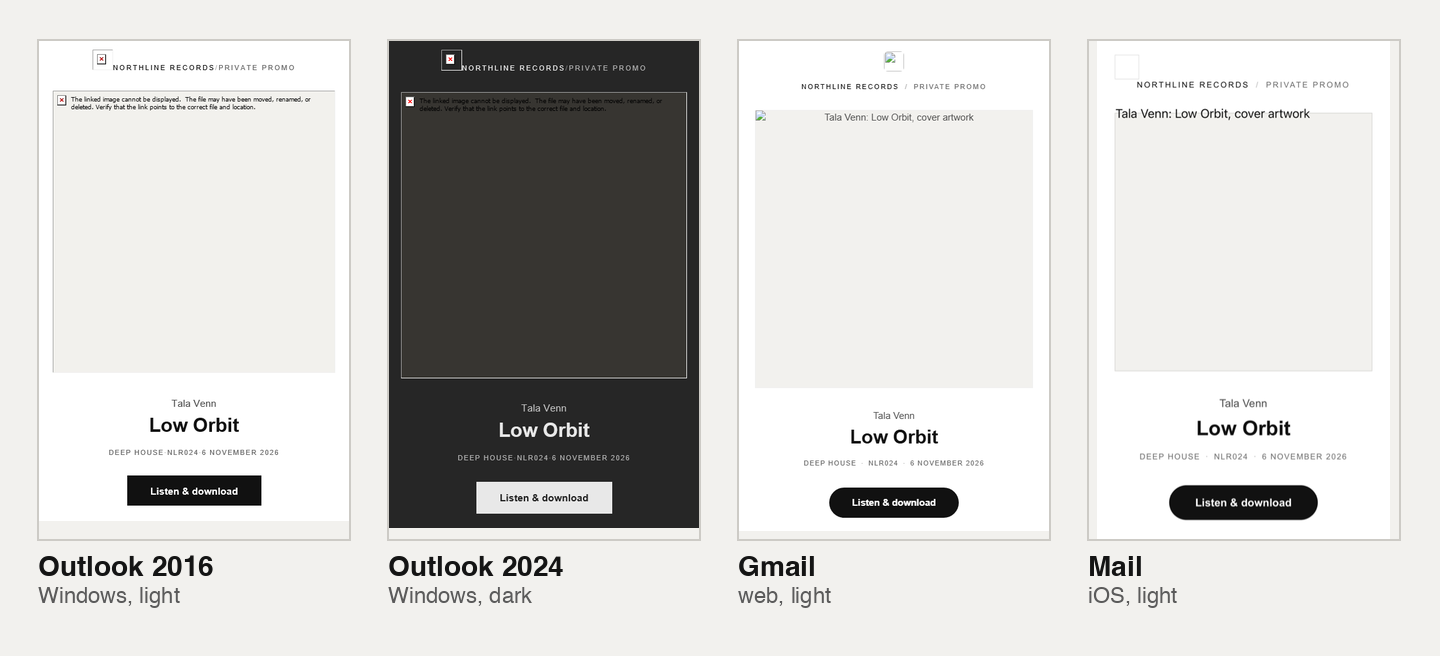
The grey strip (high severity). Hovering over the cover on a desktop shows a "Listen & download" pill on the artwork. Clients that don't support hover should never see it, and the label carried Outlook's own mso-hide: all style to hide it there. Outlook 2016, Outlook 2024 and Microsoft 365 ignored that style on this element and drew the label as a grey strip under the cover, in light and dark mode (figure 1).
The vanishing button (high severity). Classic Outlook ignores rounded corners in CSS, so the first build drew the button there as a VML shape, the vector format Outlook still supports, to keep its pill shape. In dark mode, Outlook 2024 and Microsoft 365 recoloured the button's white label to dark grey and left its black fill alone. The result was dark text on a black pill.
Three smaller findings came out of the same runs:
- New Outlook for Windows, dark mode. The hover pill appeared on the cover at rest. On the re-test it was gone, and the earlier capture matched the capture tool's pointer resting on the cover. It wasn't a bug in the email.
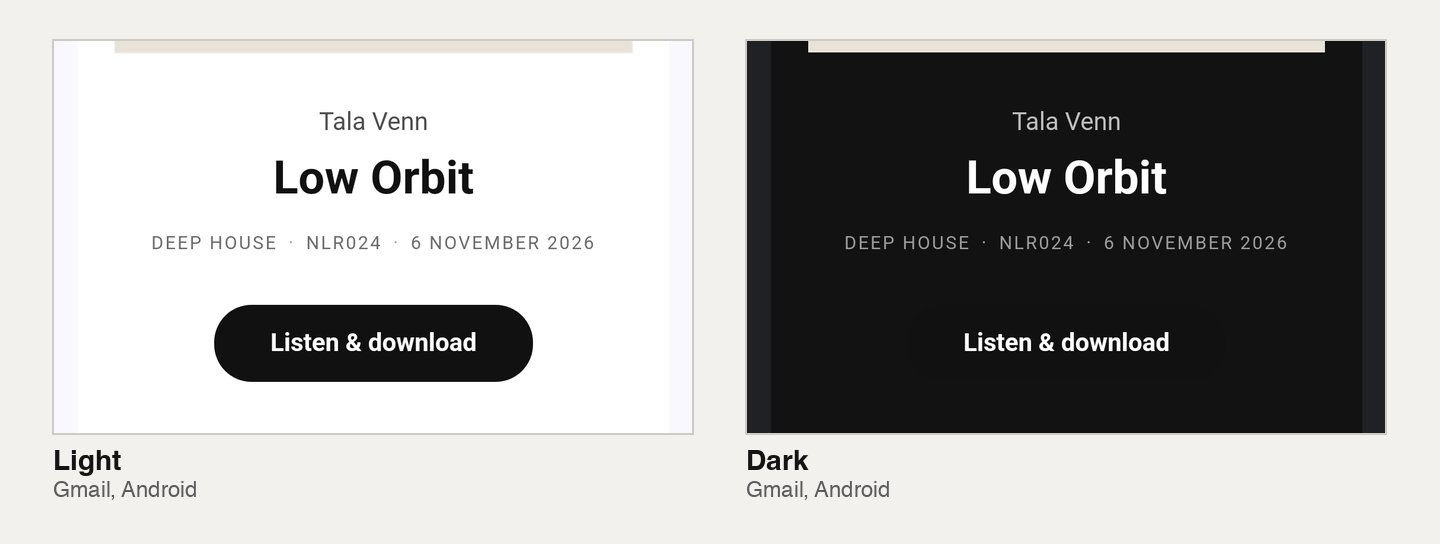
- Gmail on Android, dark mode. Gmail darkens the page but leaves the button's black fill as it is, so the pill's edge disappears. The words stay readable, so we left it as is.
- Classic Outlook drops the small dot separators in the genre, catalogue number and date line. The line still reads correctly with spaces.
The fixes, and the re-test on the shipped email
The strip needed Outlook not to see the hover label at all. The fix wraps the whole overlay in a conditional comment, <!--[if !mso]><!--> … <!--<![endif]-->, which every other client reads as ordinary HTML and classic Outlook skips entirely. The after shots showed the cover meeting the page cleanly in every classic Outlook setup we'd flagged.
The button took more work, because Outlook's dark mode is hard to predict. The agent built six candidate buttons into one test email and rendered it in Outlook 2016 and Outlook 2024 dark mode in a single run.
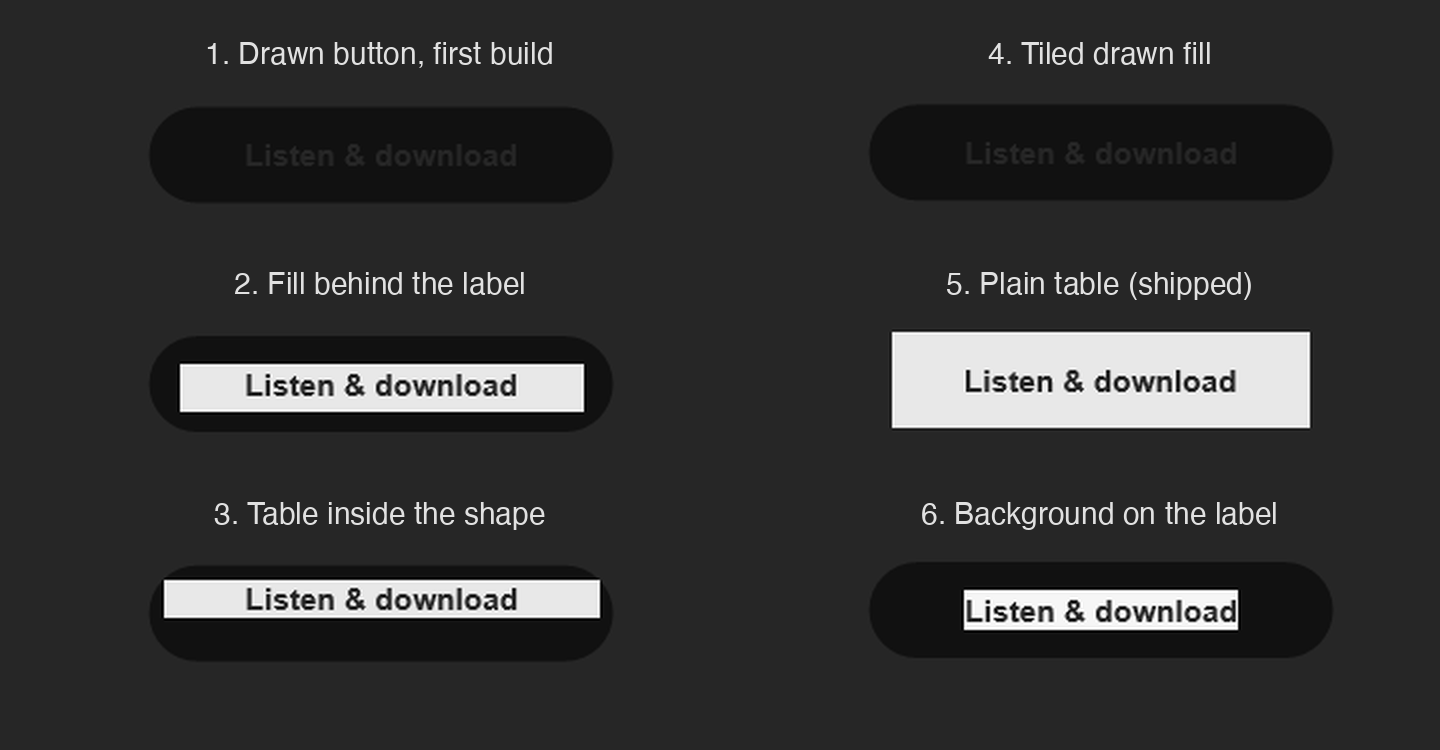
The plain table button was the only build where Outlook changed the fill and the text together, so it stays readable in both modes. The cost is shape. Outlook gets a square button instead of a pill, which is the same trade the redesign post describes for rounded corners. Every other client still gets the rounded button.
With both fixes merged, we tested the email that shipped. Outlook 2016, Outlook 2024 in light and dark mode, and Microsoft 365 dark mode all passed, with no strip and a readable button (figure 2, right). A second round re-tested New Outlook in light and dark mode and added Gmail on Android in light mode, which had stuck on the first run.
That round also covered blocked images. The API offers an image-blocking option, but in our runs it had no visible effect: images still loaded in Outlook 2016, Gmail and Apple Mail. So we simulated blocking another way, pointing both images at an address that doesn't answer. In all seven clients we tried (Outlook 2016, Outlook 2024 dark, Gmail on the web, Yahoo, AOL, Apple Mail dark and iOS Mail), a grey cell held the cover's place and the title, button and message stayed readable.
What screenshots can't tell you
Real inbox captures closed the biggest gap in our testing. They don't close all of it.
- Hover can't be captured. A screenshot shows the email at rest. Whether the hover pill appears on the cover in Apple Mail on a Mac needs a person with a mouse.
- Gmail's iOS app in dark mode is untested. It inverts everything, which makes it the strictest dark mode. The capture stuck in our first run, and by the second the service had withdrawn that client.
- Plain text, preview text and Gmail clipping aren't screenshotted. They need other checks. The email weighs about 15KB, well under the 102KB at which Gmail clips a message.
- Blocked images were simulated, as described above, rather than set through the service.
- Screenshots come from the service's own accounts and settings. A reader's zoom level, add-ins or company mail policy can still change what they see.
Rendering is also only half the question. Whether the new design gets more DJs and tastemakers to the music is a measurement for later, and this post makes no performance claims.
Behind the scenes
The testing in this post was done by Claude, an AI model made by Anthropic, working in agent sessions under direction from a person on our team. Claude researched and compared the services, ran every test through the API, read the screenshots and wrote up the findings. A separate Claude session took the grey-strip finding, built the fix and ran the after shots. The button candidates and the re-tests on the shipped email came from the same working sessions.
A person on our team chose the service, approved the trial, decided which findings to fix and which to leave, and approved each fix before it shipped. The candid parts of this post, like the withdrawn "A min" finding and the re-test run we discarded, are in it because the agent recorded them as it went.
See it in your next promo
Every promo campaign sent through Promoly uses the tested design, including the Outlook fixes. Start a campaign from your dashboard.